Starting your eBay journey begins with setting up your account.
This step is crucial as it lays the groundwork for your online store.
Here’s a detailed breakdown of how to do it
Navigating to eBay

Open Your Web Browser: Use any web browser like Chrome, Firefox, or Safari on your computer or smartphone.
Go to the eBay Website: Type in www.ebay.com in the address bar and hit enter. You’ll land on eBay’s homepage.
Starting the Sign-Up Process

Find the Sign-In Link: On eBay’s homepage, look for a link or button that says “Sign In”. It’s usually located at the top left corner of the screen.
Click on Sign In: Clicking this will take you to the create an account/sign in page.
Create an Account
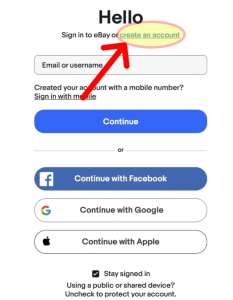
Sign In to Your Account: If you have an account you have started, sign in here.
Create an Account: If you don’t have an account already or if you want to make a new account, click create an account.
Personal Account or Business Account?

When deciding between a personal or business account on eBay, it’s important to consider your selling goals and the scale of your operation. Here’s a breakdown to help you decide which type of account best suits your needs:
Personal Account
A personal account on eBay is ideal if you:
- Sell Items Occasionally: If you plan to sell items you no longer need or use, a personal account is suitable.
- Have Smaller Inventories: If you don’t have a large stock of items and sell in smaller quantities.
- Operate as an Individual: If you’re not a registered business and are operating as an individual.
- Part-time Selling: If eBay selling is more of a hobby or a way to make some extra income on the side.
Business Account
Consider a business account if you:
- Run a Registered Business: If you have a legal business entity, a business account is necessary.
- Sell Large Quantities: If you plan to sell at a higher volume regularly.
- Want More Features: Business accounts offer additional tools and features like the ability to offer special discounts and promotions, and to customize your store.
- Plan to Scale Up: If you see eBay as a significant channel for your business and plan to grow your operations.
- Source Products to Sell: If you’re purchasing items specifically to resell them on eBay.
Create your account
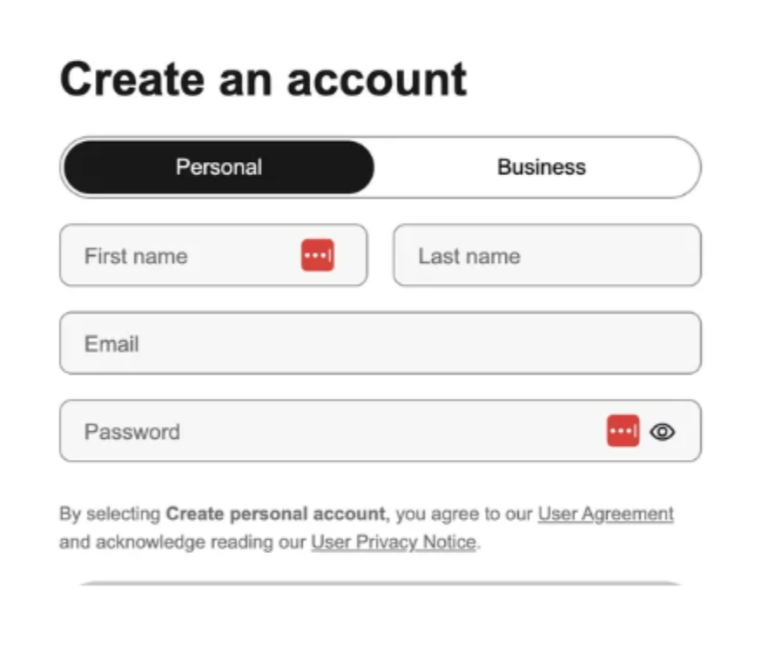
Enter Your Personal Details:
You’ll be prompted to fill in basic information. This typically includes:
- Your full name
- Email address (make sure it’s one you frequently use, as this will be key for communication and notifications)
- A strong password (combine letters, numbers, and symbols to make it secure)
Account Verification

You will be asked to verify your account in one of two ways: phone or email depending on your location.
Phone Verification:
- Enter your phone number to receive a 6 digit code
- Enter the code to verify your account
Email Verification:
- eBay will send a verification link to your email.
- Open your email inbox, find the eBay email.
- Click the verification link to activate your account.
Setting Up Account Preferences
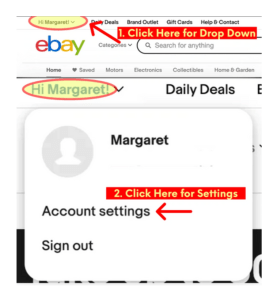
Account Settings:
- Login to Your New Account: Once your email is verified, log in to your eBay account.
- Find Your Account Settings: Select your Name
- Account Settings: From the drop down menu, select Account Settings
Account Preferences
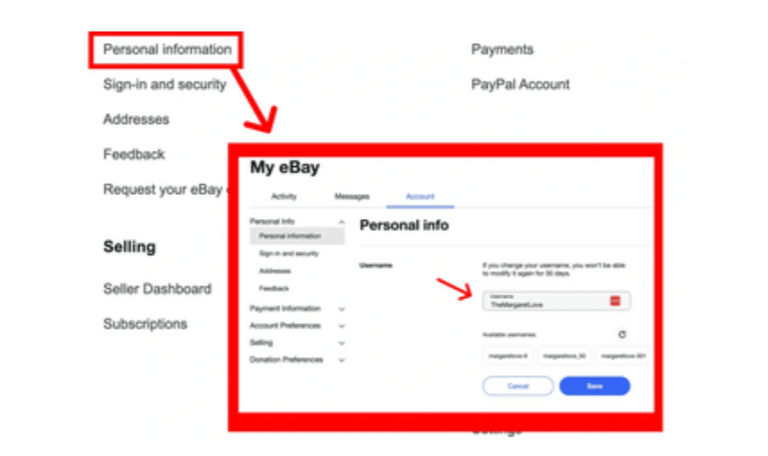
- Personal Information: eBay assigns a username when you sign up. This is how to change it. Select Personal Information
- Username: Choose the username you’d like to have displayed publicly.
How You Will Get Paid

Payments: You’ll need to set up a payment method to get paid.
Payment Methods for Selling: Link a debit or credit card or other payment options eBay offers for sellers.
Setting Up Your Profile
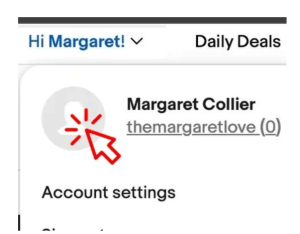
To Get to Your Profile:
- Select your name at the top left of the Ebay page.
From the drop down click on the picture icon

Edit Profile:
- Filling out your profile and adding a profile picture to your Ebay store will give your buyers a chance to get to know and trust you.
- Once the page loads, click on “Edit Profile”

Profile Picture:
- Click on the pencil icon to upload a profile picture
- Create a logo or upload a professional photo for your shop
What Should I Write in My eBay Profile About Section?
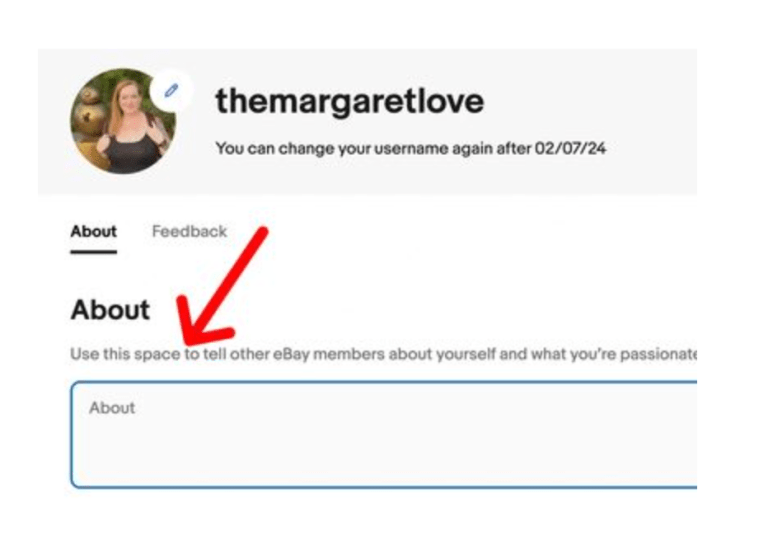
Profile About Section:
Creating an effective eBay profile involves highlighting your unique selling points and building trust with potential customers. Here’s a guideline for what you could include in your eBay profile:
- Profile Picture and Cover Image: Choose a professional and relevant profile picture, possibly your brand logo. The cover image could showcase some of your best jewelry pieces.
- Brief Introduction: Start with a short, engaging introduction about yourself or your business. Mention your passion for jewelry and any unique aspects of your collection.
- Experience and Expertise: Briefly mention your experience in the jewelry business. If you specialize in certain types of jewelry (like vintage, handmade, or specific gemstones), highlight that.
- Customer Service Philosophy: Outline your commitment to customer satisfaction. Mention your responsiveness to queries, your approach to ensuring customer happiness, and any guarantees or return policies you offer
- Personal Touch: Add a personal element, like why you started selling jewelry or what you love about it. This helps build a connection with potential buyers.
- Call to Action: Encourage visitors to browse your listings, follow your profile for updates, or contact you for any inquiries.
- Contact Information: Provide a way for buyers to contact you if they have questions or need more information.
- Social Media Links: If you have a business presence on social media platforms, include links to these profiles.